Watec Camera Viewer (Browser version) Operation Manual
1. Overview
This tool is a browser-based viewer that uses WebRTC to preview video
and adjust image quality for Watec USB cameras connected to a PC.
No application installation is required.
All video and still image data captured by this viewer are saved locally
on the user's PC and are not transmitted to any external server.
2. Verified Operating Systems
- Windows 10 / 11
- macOS 26.1 Tahoe (video preview only; UVC controls are limited)
- Linux (Ubuntu 24.04 LTS)
Unsupported Operating Systems
3. Recommended Browsers
- Google Chrome
- Microsoft Edge
4. How to Launch
4.1 Camera Permission Screen
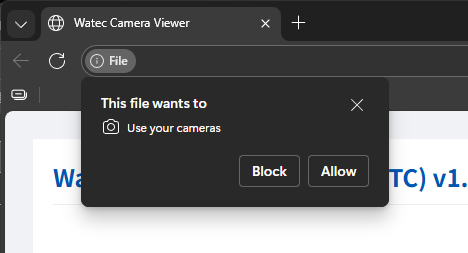
When launching the viewer for the first time, the browser will request permission
to access the camera.
- Click [Allow] to proceed
- If [Block] is selected, video will not be displayed
Even when opening the HTML file locally, camera permission is required
due to WebRTC specifications.
5. Video Preview
5.1 Device Settings
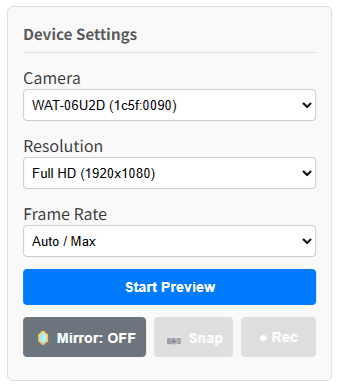
- Confirm that the camera you want to preview appears in the camera list
- Select the resolution (e.g. 1920 × 1080)
- Set the frame rate as required
- Click [Start Preview]
- If prompted again, click [Allow] to grant camera access
5.2 Live Preview
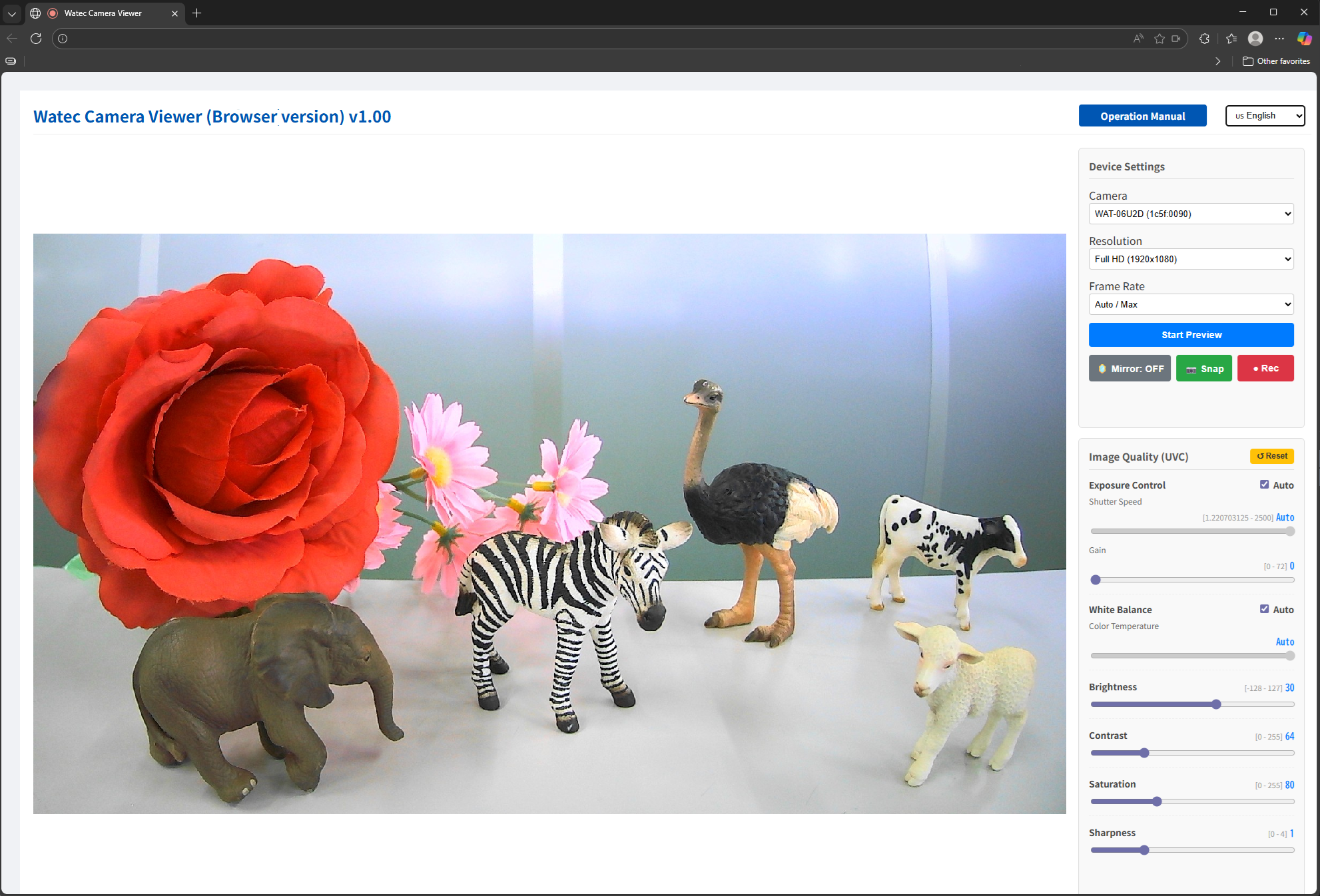
Once preview starts, the real-time video will be displayed on the left side of the screen.
6. Image Quality Adjustment (UVC)
6.1 Image Adjustment Panel
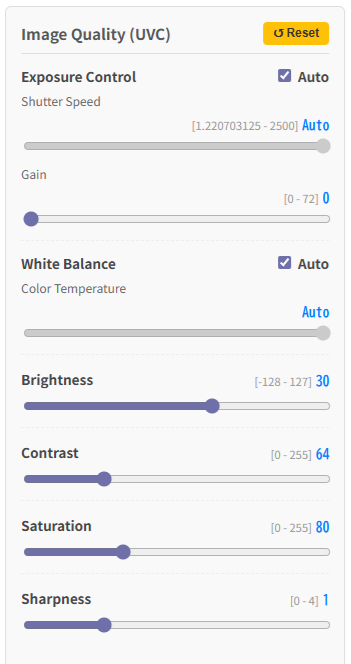
On supported browsers, the following image parameters can be adjusted in real time:
- Exposure
- Gain
- White Balance
- Brightness
- Contrast
- Saturation
- Sharpness
If a browser does not support a specific parameter, the corresponding control
may be disabled or hidden.
7. Recording and Still Images
7.1 Control Buttons

While preview is active, buttons for recording and still image capture
are displayed in the device settings panel.
| Button |
Description |
| Snapshot |
Saves the current video frame as a still image. |
| Start Recording |
Starts video recording. The button display changes during recording. |
| Stop Recording |
Stops recording and saves the video file. |
Recording and snapshot functions require browser support for the MediaRecorder API.
7.2 Saving Still Images
- Format: PNG
- Save location: Browser default download folder
- Example filename:
snapshot_2025-01-01_12-34-56.png
The resolution of still images depends on the preview resolution.
7.3 Video Recording
- Format: MP4
- Save location: Browser default download folder
- Example filename:
record_2025-01-01_12-45-00.mp4
7.4 Notes on Recording
- CPU usage may increase during recording
- High resolution or high frame rate settings may cause recording to stop
- Maximum recording duration depends on browser and PC performance
All recorded videos and still images are saved locally and are not uploaded
to any external server.
8. Troubleshooting
| Issue |
Cause |
Solution |
| Camera does not appear in the list |
Camera is not connected or not recognized by the OS |
Check the USB connection and verify device recognition in the OS |
| No video is displayed |
Camera access is not permitted |
Change camera permission to “Allow” in browser settings |
| Resolution cannot be selected |
The camera does not support the selected resolution |
Select a resolution supported by the camera |
| Image quality controls are unavailable |
The camera does not support UVC controls |
Only supported parameters can be adjusted |
| Recording cannot be started |
Unsupported browser or preview not started |
Use the latest Chrome / Edge / Safari and start preview first |
| MP4 file is not saved after recording stops |
Download blocked or high system load |
Check browser download settings or lower resolution/frame rate |
9. Disclaimer
This software and this guide are provided on an “as is” basis.
- No responsibility is assumed for any direct or indirect damages
resulting from the use or inability to use this software.
- No guarantee is provided regarding the accuracy or completeness of
captured video or image data.
- Operation depends on the OS, browser, USB camera, and system configuration,
and is not guaranteed in all environments.
- Contents of this guide are subject to change without notice.
By using this software, you are deemed to have agreed to the above disclaimer.
10. Version Information
| Item |
Details |
| Software Name |
Watec Camera Viewer (Browser version) |
| Version |
v1.00 |
| Release |
Initial release |